
Build Your Pet Memorial
Build Your Memorial is where you create, edit, and preview your complete pet memorial. Add your pet’s details, upload photos, write stories, choose music, select a colour theme, and choose either a video Gateway or your own uploaded Gateway image.
Basic Information
Begin by adding the main details connected to the pet memorial, including the Custodian information, pet details, family or owner information, and personalised labels.
Custodian Details
Enter the Custodian name and email address. The Custodian is the person responsible for creating, editing, and managing the pet memorial.
Pet Details
Add your pet’s name, birth or adopted date, passed date, optional heading, epitaph, End Template message, and Leave Message.
Family / Owner Label
The Family Label lets you decide how the owner or family name is shown. The default label is “Family”, but this can be changed to suit the memorial.
Family Name
Add the family or owner name connected to the memorial. This may be a family surname or the name of the pet’s owner.
Passed Label
The Passed Label lets you decide how the passing date is described within the memorial. The default label is “Passed”, but this can be personalised to suit the memorial experience.
LifeSlides
LifeSlides provide the core of the pet memorial experience. In Create Pet Memorial, LifeSlides are shown as thumbnails so you can preview, reorder, and edit the memorial journey.
A LifeSlide is either a Photo LifeSlide or a Story LifeSlide. It is never both. Use Add Photo and Add Story in the Life section to build your memorial experience.
Add a Photo LifeSlide
Upload images, set durations from 1–30 seconds, and arrange them in the order you want them to appear.
Add a Story LifeSlide
Add meaningful stories and memories throughout the memorial journey using Story LifeSlides.
Primary Photo
A Photo LifeSlide can be marked as the Primary Photo and used within the final End Template.
Autoplay & Duration
LifeSlides autoplay automatically and play in the order you arrange them.
Personalise the Memorial
Choose the colour, music, and final message that shape the atmosphere and feeling of the memorial experience.
Choose Colour Theme
Select a colour theme that defines the visual tone of the memorial journey, including LifeSlides and the End Template.
Choose Music
Select background music that suits the feeling of the memorial. Music plays throughout the journey and fades during the End Template.
Preview Music
Music tracks can be previewed before selection so you can choose the right atmosphere for the memorial.
End Template
The memorial journey ends with the End Template, which can display the Primary Photo, pet details, colour theme, and End Template message.
Select a Gateway
Every pet memorial begins with a Gateway. You can choose from the available video Gateways or upload your own image Gateway.
A video Gateway can be previewed before selecting. An image Gateway lets you upload one favourite image to create a personal opening screen for the memorial.
Before Completing Your Pet Memorial
- Add custodian name
- Add custodian email
- Add pet name
- Add a photo or story
- Choose background music
- Select a Gateway
- Accept Terms & Conditions
After creating your pet memorial, keep your edit link and moderation link safe and secure. These links allow you to manage, edit, and moderate the memorial.
Because pets deserve more than a simple tribute page.
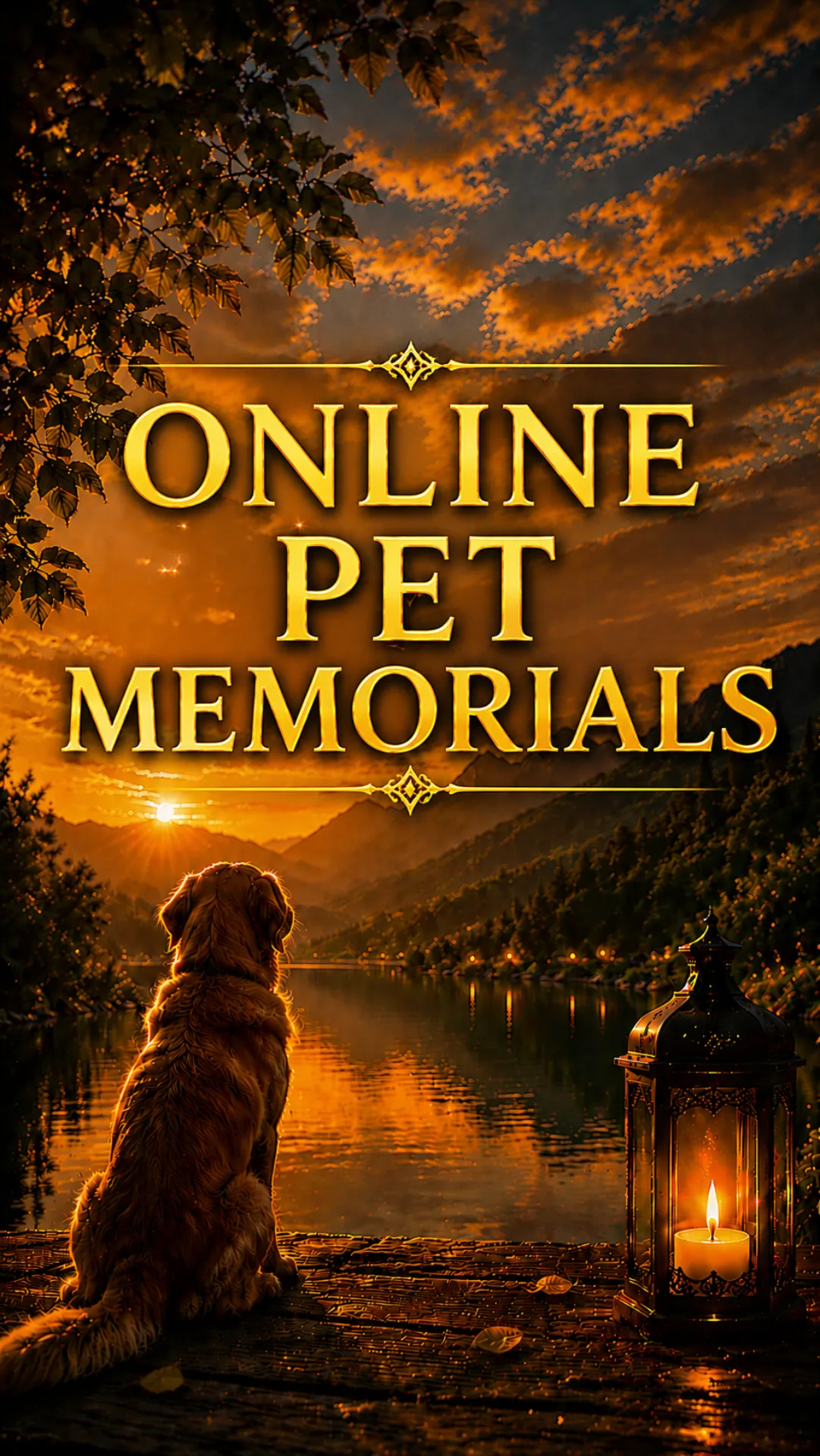
An Online Pet Memorial is not simply viewed. It is entered — a calm, emotional remembrance experience designed to celebrate the love, companionship, and memories shared with a beloved pet.

A peaceful full-screen pet remembrance experience designed without clutter, distractions, or visual noise.

Celebrate your pet through music, photos, memories, colours, and a unique atmosphere that reflects their personality.

Shared intentionally through a private memorial link for family and friends to remember together.
LifeSlides for pets
Share favourite photos, playful memories, adventures, and quiet moments through immersive LifeSlides.
Designed to feel calm, emotional, and deeply personal across every device.
Created with love
Every Online Pet Memorial is shaped by the people who loved them most.

Shared memories
Family and friends can leave loving messages, stories, and memories about your pet.
Messages become part of the memorial experience itself.
Private by design
Your pet memorial remains private until you choose to share it with others.